
When AI agents can't access your browser session, the problem is often a mismatch between the browser instance the tool controls and the browser where you signed in. A cloud browser, a local Edge profile and a personal Chrome profile are separate environments even when they run on the same computer. Before entering credentials again, identify the exact session the tool has permission to reach.
First identify the browser the agent actually controls
Look at the active tabs and their URLs using the browser tool's supported listing operation. Compare that list with the browser where your account is already authenticated. If the relevant tab is missing, the agent may be attached to a different profile or worker. Opening another tab in the wrong environment will not repair the mismatch.
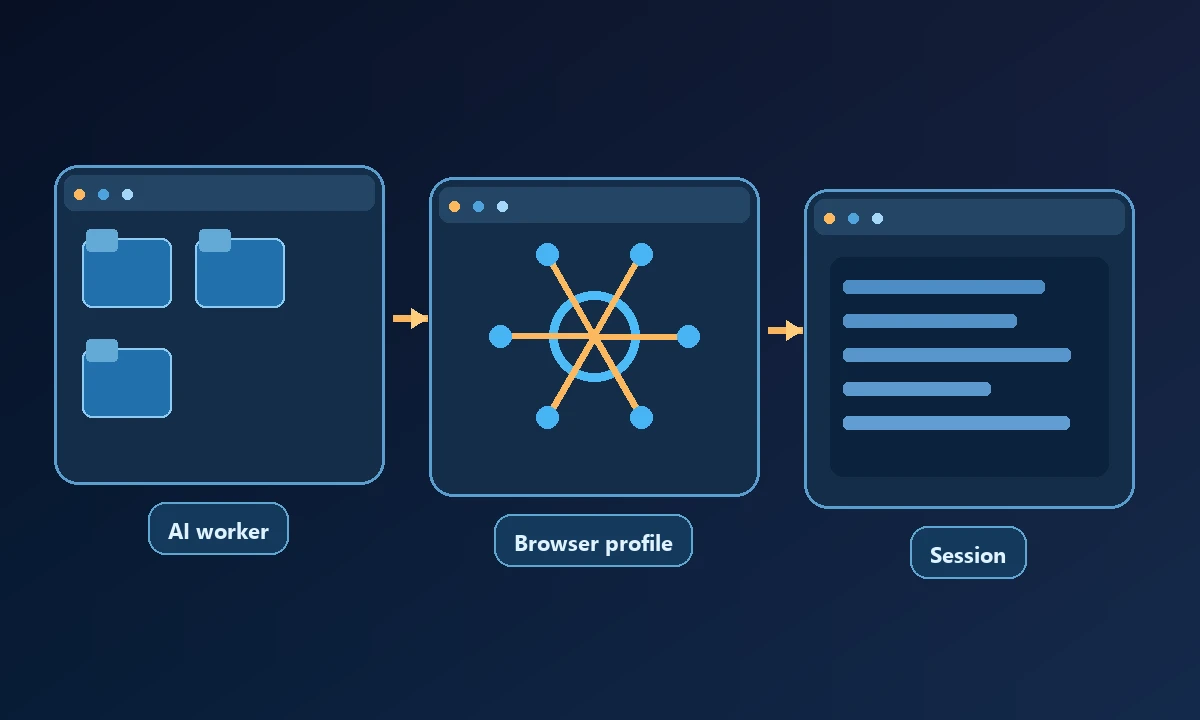
A browser tool that runs in the cloud has its own cookies and storage. Those generally do not come from an employee's browser session unless an explicit supported connection has been configured. This isolation can be a security benefit, but it changes which applications are signed in.
Someone sees an assistant open the correct website yet act as if they were logged out, even though the same account is open on their laptop. That is usually a session-boundary problem, not a failure of the assistant to understand the task. The earlier browser-versus-desktop automation explanation helps identify what environment the agent actually controls before anyone tries to copy cookies or bypass authentication.
Check four common causes in order
Wrong profile: The browser automation may target Edge while the account is signed in to Chrome, or it may use a separate named profile within the same browser. Identify the executable, profile name and supported attachment mechanism before acting.
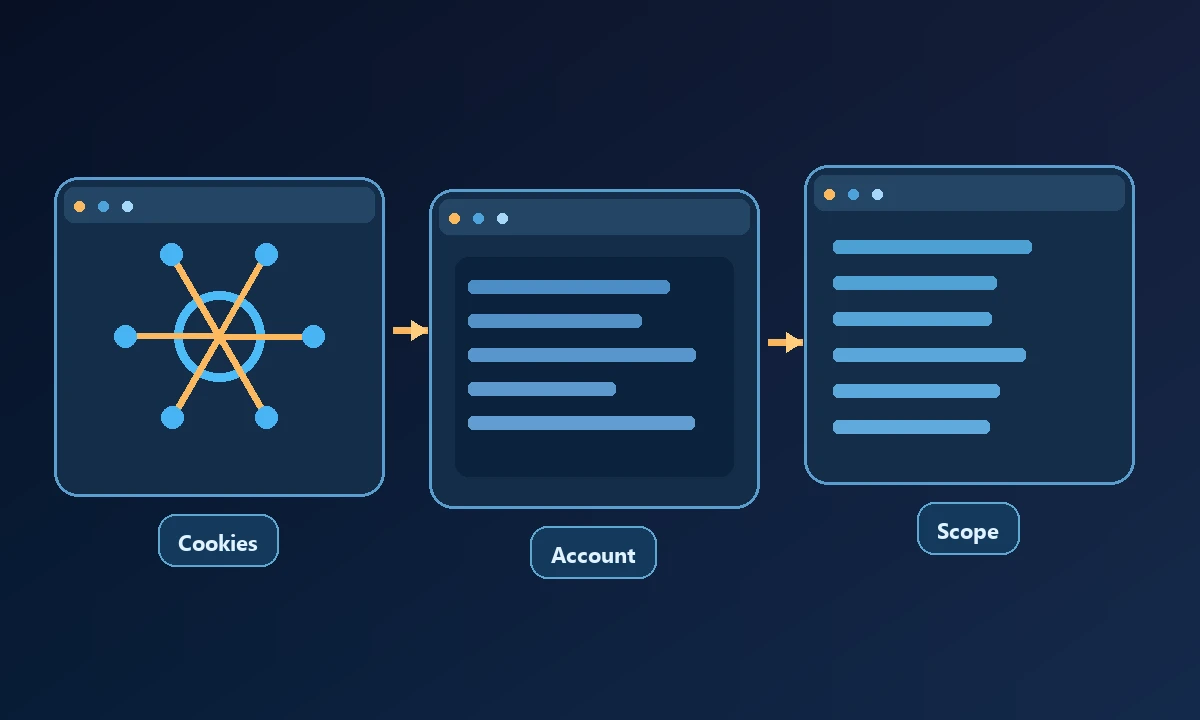
Different user or desktop session: Windows can run applications under different accounts or session IDs. A process running in one account cannot safely be assumed to see every interactive window in another. Avoid changing OS permissions merely to make a tool reach a screen it was not authorized to control.
Expired site authentication: If the correct browser and profile are attached but the page redirects to a login screen, the application session may have expired. Confirm that in the browser itself and use the site's ordinary sign-in process, not scripts that copy cookies across profiles.
Unsupported control surface: Some tools can inspect pages but not browser extensions, native permission dialogs or secure account-selection prompts. A successful navigation response does not prove that the subsequent authenticated action is available.
For workflows explicitly authorized to use an existing browser profile, Noxgild can operate the permitted signed-in browser on the enrolled computer. It is different from starting a separate hosted browser session, which may need its own account login. Neither mode should silently transfer private credentials from one context to another. The point is to run the task in the right identity and session, not to make every browser appear logged in.
Diagnose without exposing credentials
Use read-only tab and page inspection first. Do not paste session cookies, bearer tokens or saved passwords into chat logs. Do not extract browser secrets from a profile to force another process to impersonate it. If sign-in is required, use the provider's supported login flow and verify the user and account displayed after authentication.
The OWASP Session Management Cheat Sheet explains why session identifiers are sensitive authentication material and should not be casually moved between environments.
A repeatable recovery workflow
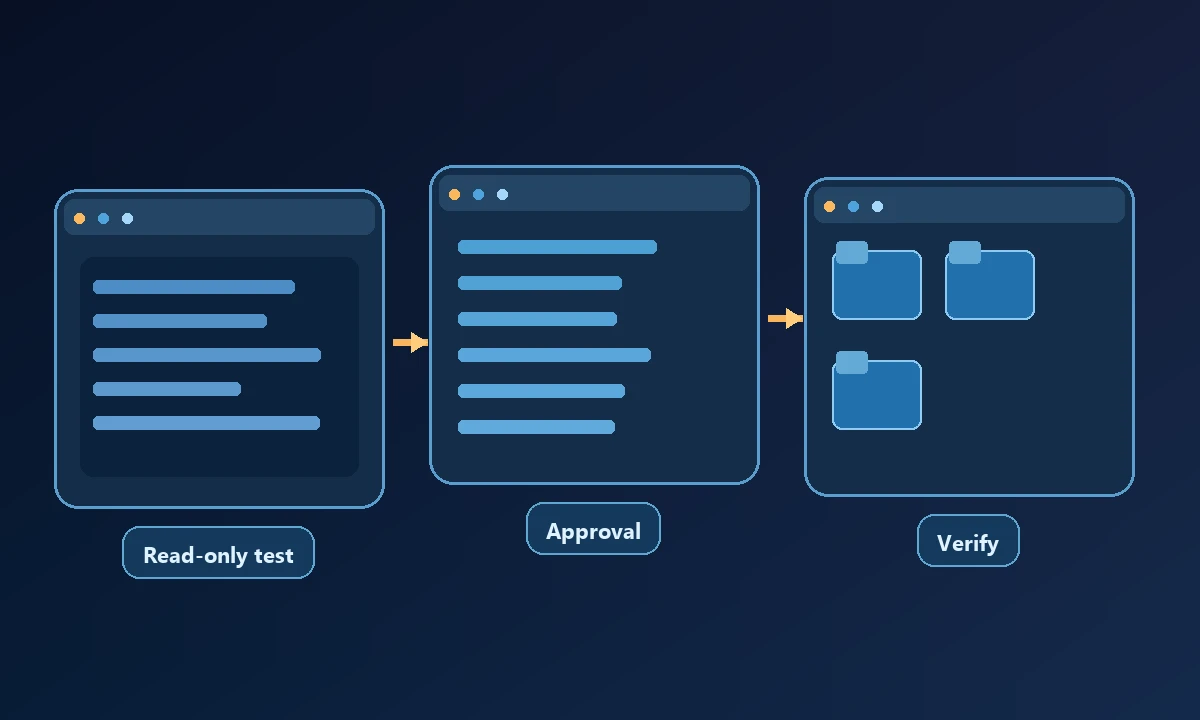
Record the intended site, expected account, device, browser profile, browser worker and observed tab list. Attach or select the supported worker for that exact environment. Run a read-only navigation and inspect the account context before trying a write operation. If the tool reports a permission error, stop and fix its authorized configuration rather than hiding the failure.
Check the browser's actual profile, the target domain and the account displayed after navigation. Then run a harmless read-only step and compare it with what the owner sees. If the browser belongs to a device that has gone offline, examine computer access and connectivity rather than resetting passwords. The diagnosis should say precisely which session was used and what prevented the action from continuing.
How you know it is fixed
The test succeeds when the agent reads a page from the intended profile, identifies the correct account and completes an explicitly approved low-risk action with verifiable evidence. If any of those checks fail, the session problem is still unresolved, even if the tool reports that a new tab opened.