
Browser automation vs desktop automation describes where a program acts and what it can see. Browser automation controls web pages and browser sessions; desktop automation interacts with operating-system windows, native applications and UI controls. A workflow may cross both boundaries, so choosing only one type can leave the final task unfinished.
What browser automation can see
Browser tools often work with the document model, accessibility tree, browser tabs, navigation events, network responses and form controls. In a web application, this can be more stable than guessing the screen position of a button. A browser test can assert that a form submission returned the expected response, not merely that an image of a green button appeared.
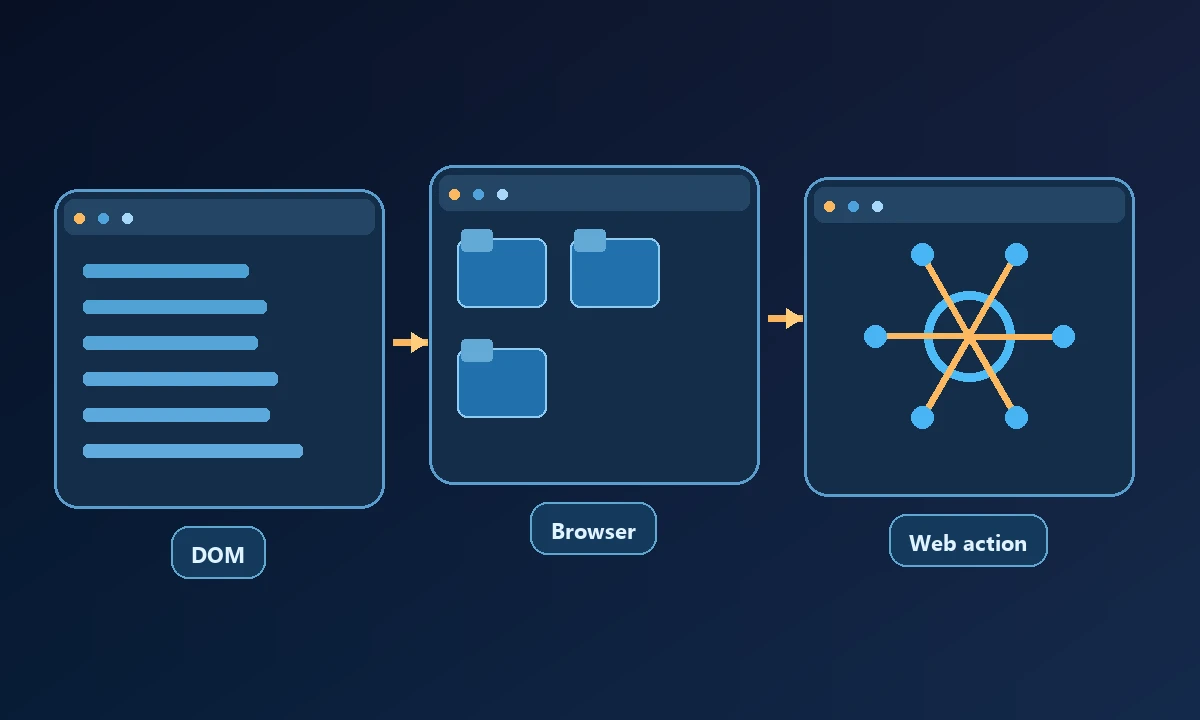
The browser boundary also creates limitations. A cloud browser does not automatically inherit cookies from an employee's personal browser on another computer. An installed desktop app may use native windows that do not expose a browser DOM. A file picker or permission prompt can move control outside the page entirely.
Opening a customer portal in Chrome and saving a report from a Windows desktop application can feel like the same task to the person requesting it. To the automation system, they are different control surfaces. Our AI browser tools comparison focuses on websites; the desktop portion must contend with installed windows, system dialogs and the user's active session.
What desktop automation can reach
Desktop automation can target windows, application controls, native menus, dialogs and operating-system actions. Depending on the tooling, it may use Windows UI Automation, accessibility APIs, keyboard/mouse interaction or screen interpretation. That makes it relevant to older enterprise applications, installers, settings and applications that mix native UI with embedded browsers.
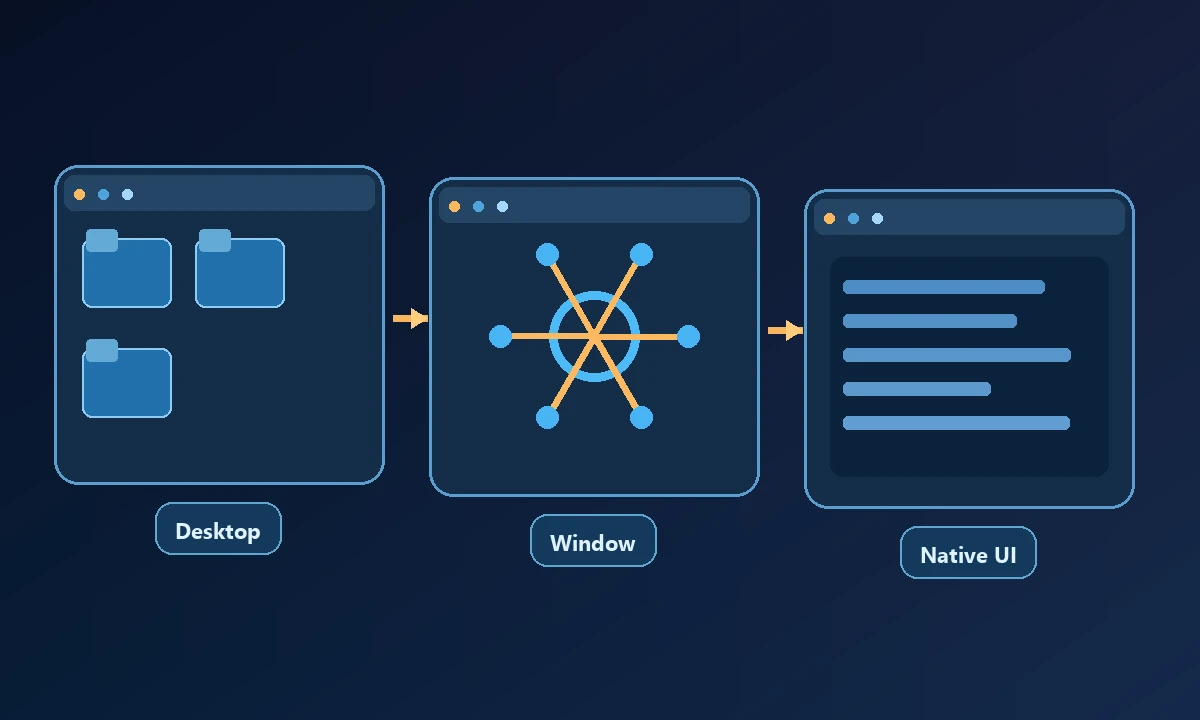
The cost is complexity. Window focus, display scaling, user session, screen resolution and the underlying app framework can influence reliability. A click at the correct coordinates is not necessarily evidence that a saving operation completed.
Four tasks that expose the difference
Submitting a support form: A browser tool can often find the form fields, fill them and verify a confirmation page. Desktop control is unnecessary if everything stays in the browser.
On an authorized computer, Noxgild can operate native Windows applications when the workflow needs controls beyond the browser. A web-only task might instead use a separate hosted cloud browser, with its own login and session behavior. Combining the two indiscriminately increases complexity: a browser that lacks the workstation's credentials cannot be assumed to resume its authenticated workflow there.
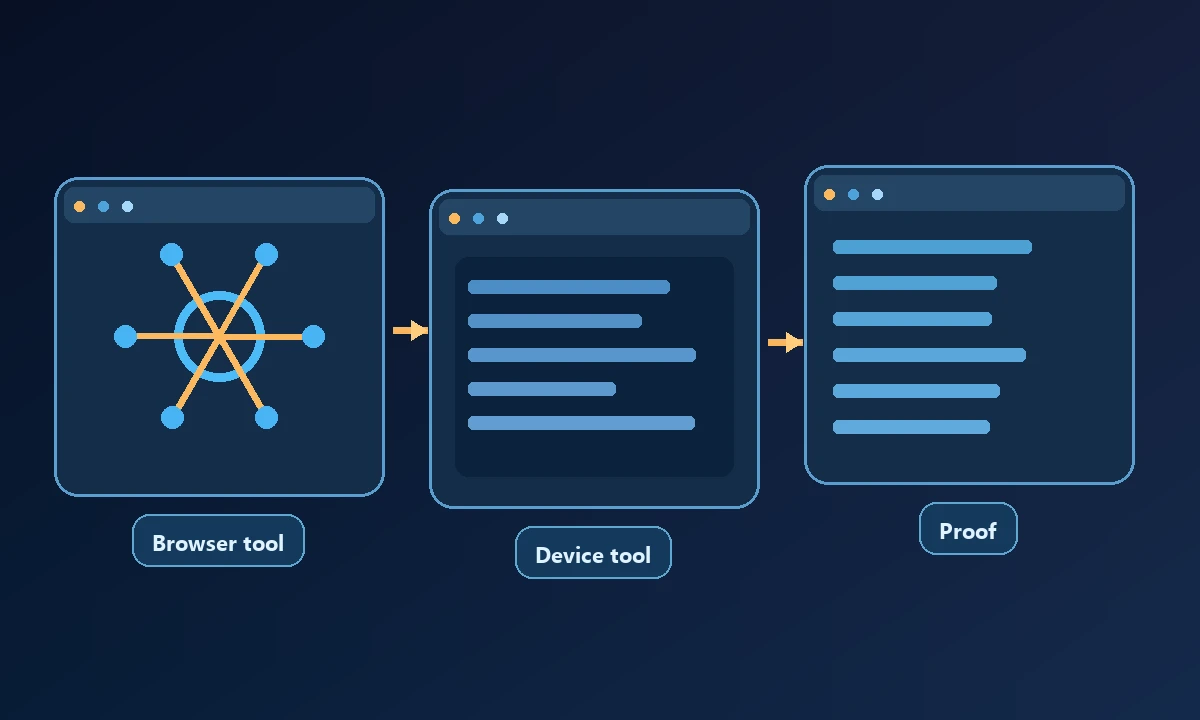
Exporting a report from a Windows application: A desktop tool may need to open a native menu and operate a save dialog, then a filesystem tool can verify the resulting file. A browser-only agent may never see those controls.
Using an already signed-in business account: The assistant must attach to the intended browser profile and session. Starting an unrelated cloud browser changes the identity context and may require a new sign-in.
Testing a web app on a remote workstation: A browser tool can validate the page, while a remote computer layer selects the correct machine and handles its local processes. A native UI step needs a separate desktop capability.
How to combine them safely
First identify the target machine and approved account. Use browser-oriented tools for web elements and native control tools when the action genuinely leaves the browser. Require a result that proves the business action completed, and have a recovery path when the session changes. The W3C WebDriver specification provides background on browser automation semantics; desktop UI libraries have different contracts.
Use an example you can observe: export a CSV in a web portal and open it in a local desktop program. Record which step needs page elements, which needs native controls and where the final file appears. The authorized-computer capabilities help frame the second part, but the goal is a correct final artifact. Select one execution surface when possible and cross the boundary only when the task actually demands it.
Which should you choose?
Choose browser automation for web-only workflows where accessible elements and stable tests are available. Choose desktop automation when the task involves native windows or locally installed software. Combine both through a controlled remote-computer path when the work genuinely spans these environments. That is a more useful criterion than a generic claim that one technology is always more advanced.