
A technician has an AI assistant open on a laptop and needs to inspect a file on a separate office computer. The assistant understands the request, but it cannot reach that machine merely because the technician describes it in a prompt. What is a remote MCP server, and could it provide the missing connection? It is a network-accessible service that exposes specific tools to an AI client using the Model Context Protocol. The client can discover permitted operations, ask the server to perform one, and receive a result.
The important word is permitted. A remote connection is not automatic administrator access to another computer, and successful tool discovery is not proof that the requested task succeeded.
The basic idea: an assistant asks a tool to do work
MCP defines a common way for an AI application to interact with external tools and data. The assistant is the client. The server publishes operations—such as finding a file, reading permitted records, or running a scoped diagnostic—and describes the inputs each operation accepts.
A local MCP server runs near the client, often on the same computer. A remote MCP server is reachable over a network and can make capabilities available from another environment. The difference affects authentication, availability and trust: a tool on your laptop may share your local operating-system context, while a remote tool needs its own identity and scope.
For example, reading a list of project files sounds simple. On a developer's laptop, a local MCP tool might inspect an approved workspace. For a computer in another office, the operator needs a remote connection with permission to that device and folder. The user-facing request sounds similar, but the path to the result is very different.
Five terms make the architecture easier to understand
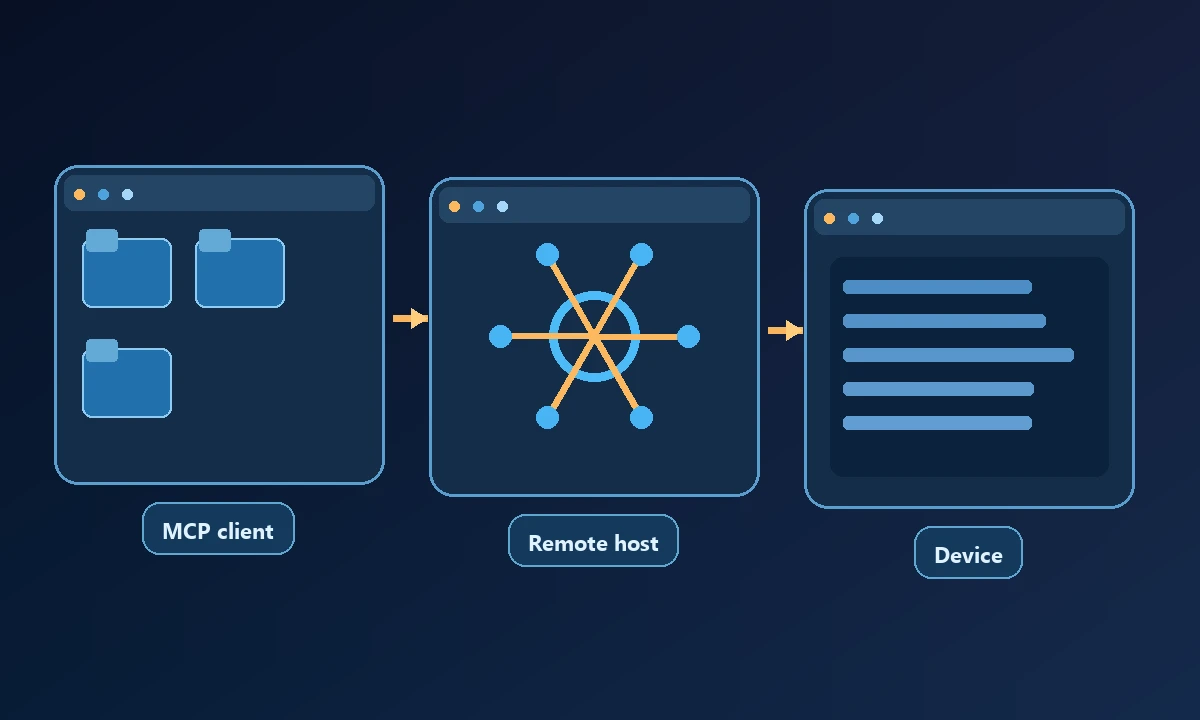
Client is the AI application that requests actions. Server is the endpoint presenting tools. Tool is a specific operation with structured arguments and a result. Transport is how the client and server exchange protocol messages. Authorization decides which client or account may use which operation.
These terms matter because people often confuse a server with the computer it can operate. A server may expose information from a database, a web application or a connected physical device. Its location and advertised tools do not by themselves establish permission to perform arbitrary machine actions.
The current Model Context Protocol specification describes the protocol's capabilities and authorization model. Its communication rules are useful, but individual products still need to define their own device access, user approvals and operational limits.
What happens during a real remote tool call?
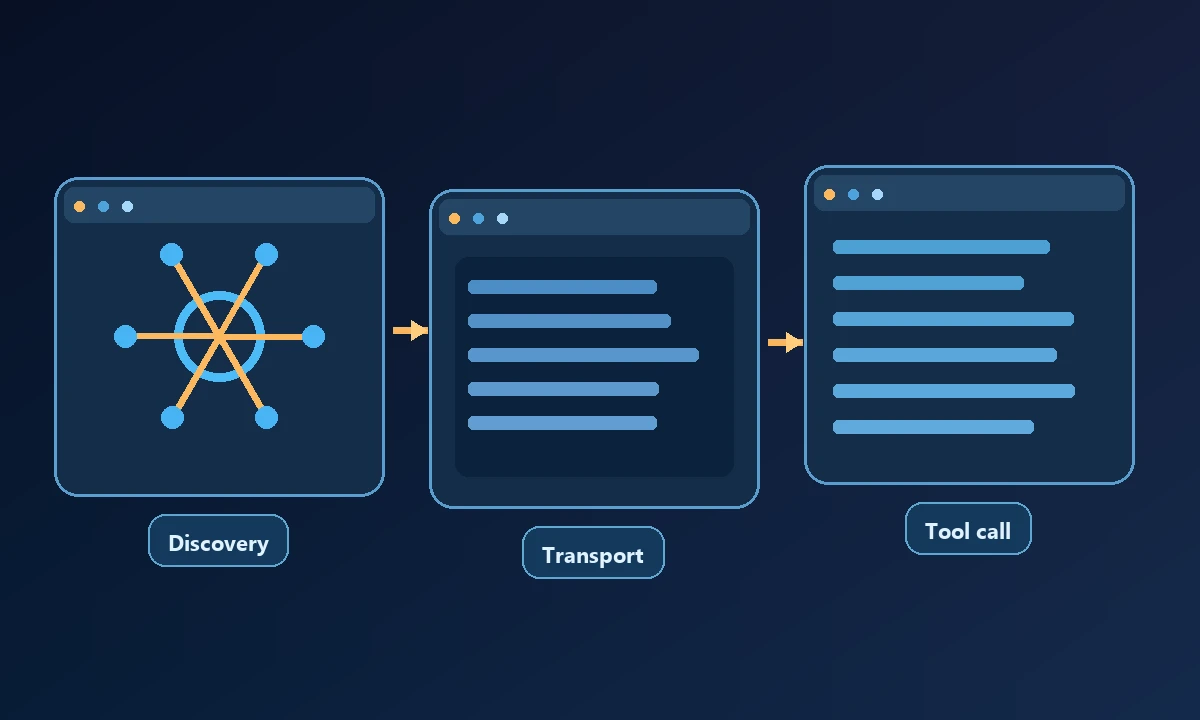
First, the AI client connects to the authorized server. Depending on the implementation, it may authenticate with a supported flow and discover the available tools. The client then chooses an operation and supplies structured arguments. The server checks the request and runs only what its implementation and permissions allow. Finally, it returns a result that the client can evaluate.
Suppose the technician asks for a diagnostic on an enrolled Windows workstation. Before executing anything, the system should establish the target machine, the intended command and the allowed scope. When the action completes, the result needs to refer to the same machine. A success label without a device identity or output leaves room for a costly misunderstanding.
With Noxgild, an authorized AI client can operate a designated computer through available device capabilities rather than pretending the assistant's own environment contains the workstation's files. The supported computer operations are separate permissions: reading a permitted file does not mean every shell command or desktop action is available.
When remote MCP is useful—and when it isn't
A remote connection is valuable when the work or data lives outside the assistant's immediate environment. Common examples include investigating a permitted workstation, running a diagnostic against a managed service, or retrieving structured information from a business tool without manually copying it into chat.
If your assistant only needs a local project directory, a remote server may add unnecessary network, identity and availability concerns. The same is true of a simple public website lookup that a supported browser can already perform. Remote MCP is worth evaluating when the distance between the assistant and the actual work is the obstacle.
A second example helps expose that distinction. A developer can review a pull request from a cloud service without reaching a Windows machine. But if the fix must be verified inside an installed application on a specific workstation, remote device capabilities become relevant. Noxgild can automate supported Windows applications on an enrolled machine under the allowed controls; this is a different task from fetching a web page.
Browser sessions are a separate permission decision
One of the most frequent surprises in computer automation is a browser that looks empty despite the user already being signed in elsewhere. A hosted browser session does not inherit a workstation's cookies or browser profile. Nor does giving an agent browser control authorize it to access every tab or account on the machine.
When the intended task depends on a browser session that the computer owner has authorized, working with the signed-in browser may be more appropriate than starting a fresh hosted session. For isolated web tasks, a cloud browser can keep that environment separate. Choosing the correct execution mode is part of designing a safe workflow, not an afterthought.
The same separation applies to files and installed software. Permission to inspect one folder is not permission to roam the entire drive; enabling a browser tool does not automatically enable the desktop tool.
A sensible first remote-MCP test
Start with a read-only task whose result you can verify without changing the computer. Choose one enrolled device and an ordinary non-sensitive file in an allowed directory. Confirm the client can see the required tool, request file information and compare the returned details with what the owner expects.
Only after that should you test a workflow with several steps. If the agent needs to act, define a review point before any sensitive change. The practical controls in connecting an AI assistant safely are useful when you move from reading results to changing device state.
This also helps distinguish transport problems from tool-permission problems. A failed connection may mean the client cannot reach the server; a permission error may mean the connection works but the action is outside scope. Keep those diagnoses separate rather than granting broader access to make the error disappear.
What should you check before choosing a server?
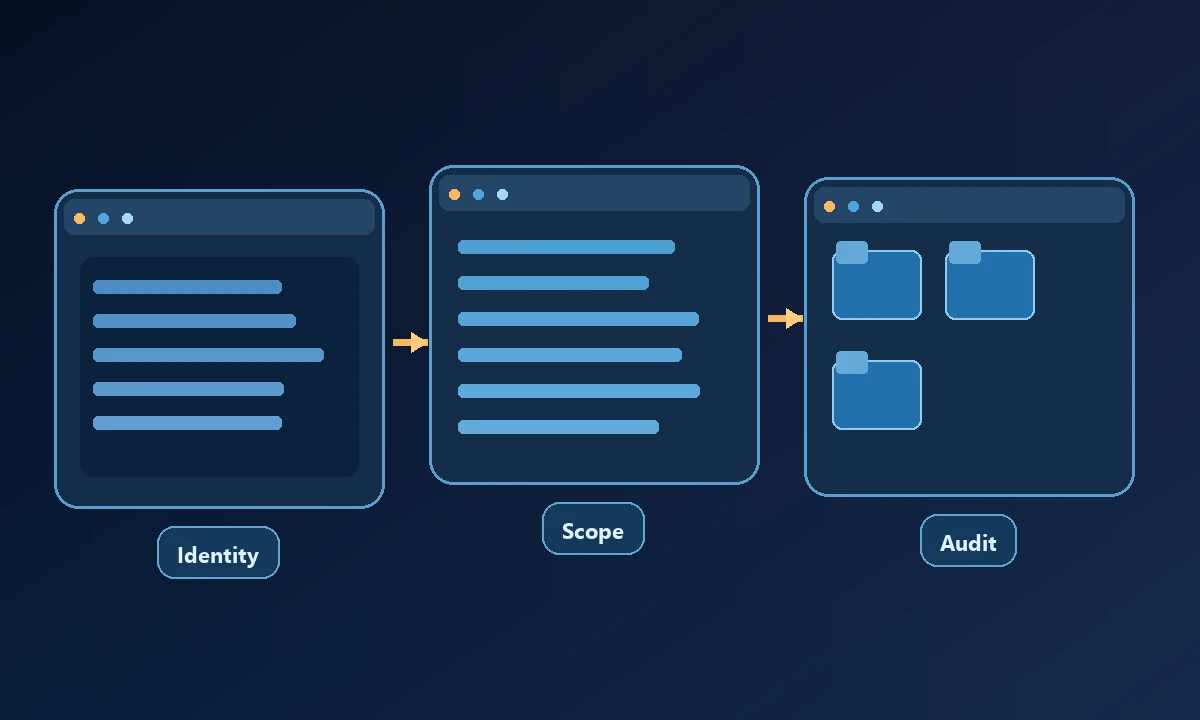
Find out what the server can actually access, where the work executes, who maintains the endpoint, and what happens when a device or account goes offline. Ask how credentials are protected, whether commands are recorded, and how the owner can revoke access. Then test the result on the intended environment.
A generic model-driven browser tool and a service connected to an authorized computer may both advertise MCP support, yet solve different problems. Our comparison of AI computer-control tools can help you evaluate that broader choice without confusing the protocol with the product.
The best first deployment is modest: one client, one server, one clearly identified target and one verified read-only action. Once you know those boundaries work, expanding the workflow becomes a considered decision rather than a guess.