
To connect Claude to a remote computer using MCP, first verify that your Claude client supports the intended MCP transport and that your computer-access provider supplies an authorized remote endpoint. A custom MCP server and a tool installed locally inside a desktop assistant are different configurations. Both require a deliberate connection to the computer you actually intend to operate.
Understand the connection path
The typical remote flow is Claude client to authenticated MCP server to device worker to computer and back. The MCP server exposes tool names and schemas; the worker may then handle file, shell, browser or desktop operations on the registered device. No part of the protocol automatically gives Claude access to every Windows or Mac application.
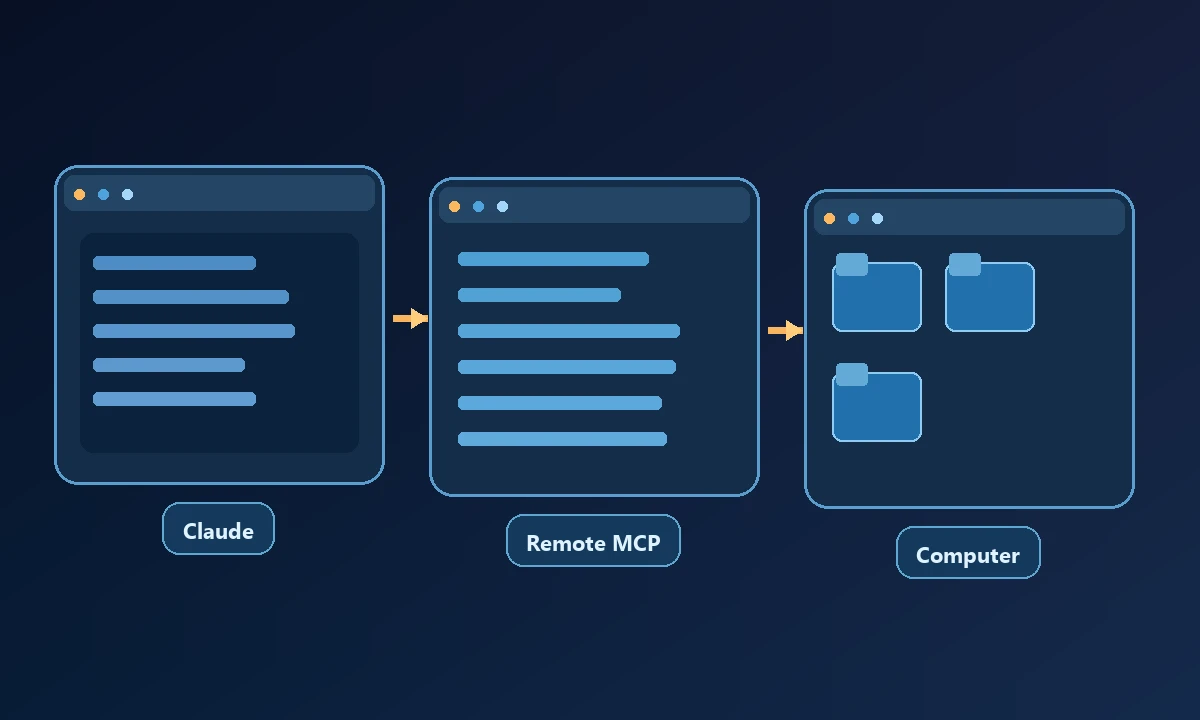
Identify the target machine, its owner and the account through which the device was enrolled. If a provider offers a hosted cloud computer rather than a bridge to an existing PC, make that distinction explicit before choosing it.
A Claude user may have a functioning assistant and still be unable to inspect a file on a separate Windows workstation. The missing piece isn't a better prompt; it is a remote tool connection with a named target and granted permissions. Our remote MCP architecture overview explains the client, server and device boundaries before a technician changes any account settings.
Step 1: Check your Claude environment
Confirm whether the client you use supports custom remote MCP connections, a compatible connector marketplace entry or a local MCP server configuration. Availability and setup surfaces can differ across the web client, desktop app and organization-managed accounts. Use the current official client settings, not a guide assuming an older feature menu.
If your chosen mode cannot attach to the remote endpoint, stop there. Installing a local tool on an unrelated laptop does not magically connect it to a different device.
Step 2: Register the remote device
Follow the provider's supported owner registration process on the target computer. Noxgild's computer access workflow describes a device-targeted model. Check the machine appears online, that a user approved its enrollment and that it exposes only the tool surfaces needed for your task.
Avoid reusing a privileged local account for every operation. A named device with a restricted role is easier to audit than a generic remote endpoint with a broad token.
Noxgild provides a supported way to connect Claude to authorized computer tools. Once the relevant client and connector are configured, the assistant can request allowed operations from the selected device rather than pretend the files exist inside the chat. For native software, permitted Windows application operations may also be available where the user session and tool scope support them. Specific Cowork or browser modes require their own compatibility checks; don't assume every Claude experience works identically.
Step 3: Authorize the connection
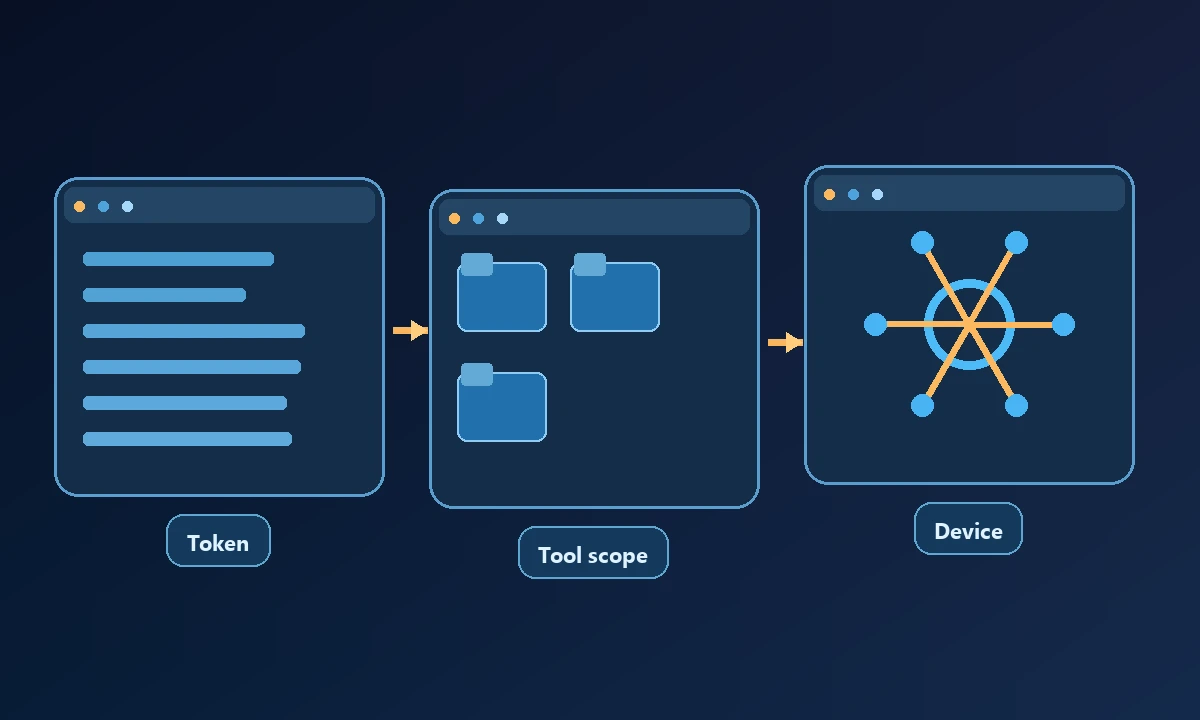
Add the authenticated endpoint or approved integration in Claude, using the provider's documented sign-in and permission flow. Do not paste bearer tokens into prompts or move browser session cookies between programs. When the client lists tools, read their descriptions and confirm whether the operations are local files, hosted-browser actions or commands executed on the registered computer.
The MCP client/server architecture clarifies the protocol roles, but the actual permission to run a command comes from the host and the service account, not the model's text.
Step 4: Test a small, observable task
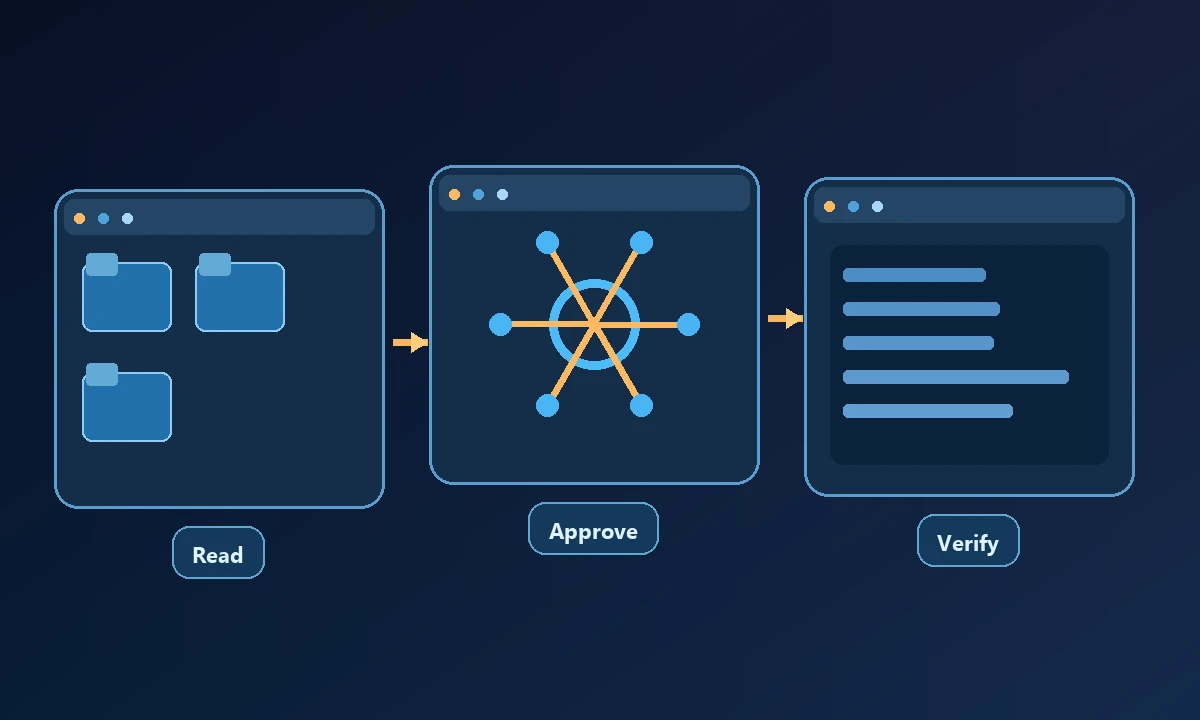
Request a read-only machine information call or a directory listing from the named computer. Confirm the tool response identifies the expected device and returns actual data. Next, try an unavailable device to inspect failure handling. Only after those tests pass should you test a reversible write operation with the required approval.
For browser automation, check the session attachment guide: the agent may control a separate profile or hosted browser rather than the one where you are already signed in. An incorrect account context is a failed setup even if navigation succeeded.
Make the first test read-only: identify the machine, inspect a known harmless file and compare the response with its actual state. Then intentionally request a path outside the allowed workspace and confirm that the boundary holds. The security controls for computer access are relevant to the permission step, but the successful outcome is an observable authorized operation—not the fact that a connector appears in a settings screen.
Keep the connection maintainable
Document the connected client, device name, owner, permitted tools, token-revocation process and recovery procedure for offline workers. Review Noxgild's security boundary explanation and capability reference when deciding which controls to enable.
The setup is successful when Claude can perform a permitted read-only operation on the right computer, report the result and fail safely when authorization or connectivity is missing.